Use the same email as on GitHub/GitLab if you use them.
New project: init or clone
Start from scratch (new folder, new repo):
cd my-projectgit init
Start from an existing repo (e.g. GitHub, GitLab, a colleague’s copy):
git clone <url># e.g. https://github.com/user/repo.git
git init — Git starts tracking the current folder; you make the first commit.
git clone — You get a full copy (history included); you’re ready to work and push back if there’s a remote.
Basic workflow — The loop
Every time you finish a small, logical change:
Stage — Choose what goes in the next snapshot: git add
Commit — Save that snapshot with a message: git commit -m "message"
Repeat.
Golden rule
You never commit without staging first. Stage (add) → Commit. Every time.
Basic workflow — Status and history
What you want
Command
What changed? (files)
git status
Short status
git status -s
List of commits
git log
One line per commit
git log --oneline
Run git status often. It tells you what’s modified, staged, or untracked.
Tracked vs untracked — Reading git status
Tracked — Git already knows the file (it was in the last commit or you ran git add). Git shows changes: modified, staged, or clean.
Untracked — The file is in the folder but Git is not tracking it yet. It won’t be in the next commit until you git add it.
git status groups files into:
Changes to be committed (staged) — will be in the next commit
Changes not staged for commit — modified but not staged
Untracked files — not in the repo yet
Reading git status — Example
Basic workflow — Stage and commit
What you do
Command
Stage one file
git add <filename>
Stage all changes
git add .
Commit with message
git commit -m "Add results for experiment 1"
Good messages: short, present tense, why (“Fix threshold in step 2” not “changes”).
Good commit messages — structure and why it matters
Structure:
Subject line — One short line (≈50 chars), imperative mood: “Add …”, “Fix …”, “Update …”.
Optional body — What changed and why; blank line after the subject. Use when the change needs context.
Why it matters: Good messages make git log readable. Future you (and collaborators) can understand and find changes without opening every commit. Bad messages (“fix”, “update”, “changes”) make history useless.
Tip: AI can help — paste your git diff and ask for a commit message, or use your editor’s AI to suggest one from the staged changes.
Basic workflow — Inspect and undo
What you want
Command
See changes not yet staged
git diff
See changes already staged
git diff --staged
Discard changes in a file (careful!)
git restore <file>
Unstage a file (keep changes)
git restore --staged <file>
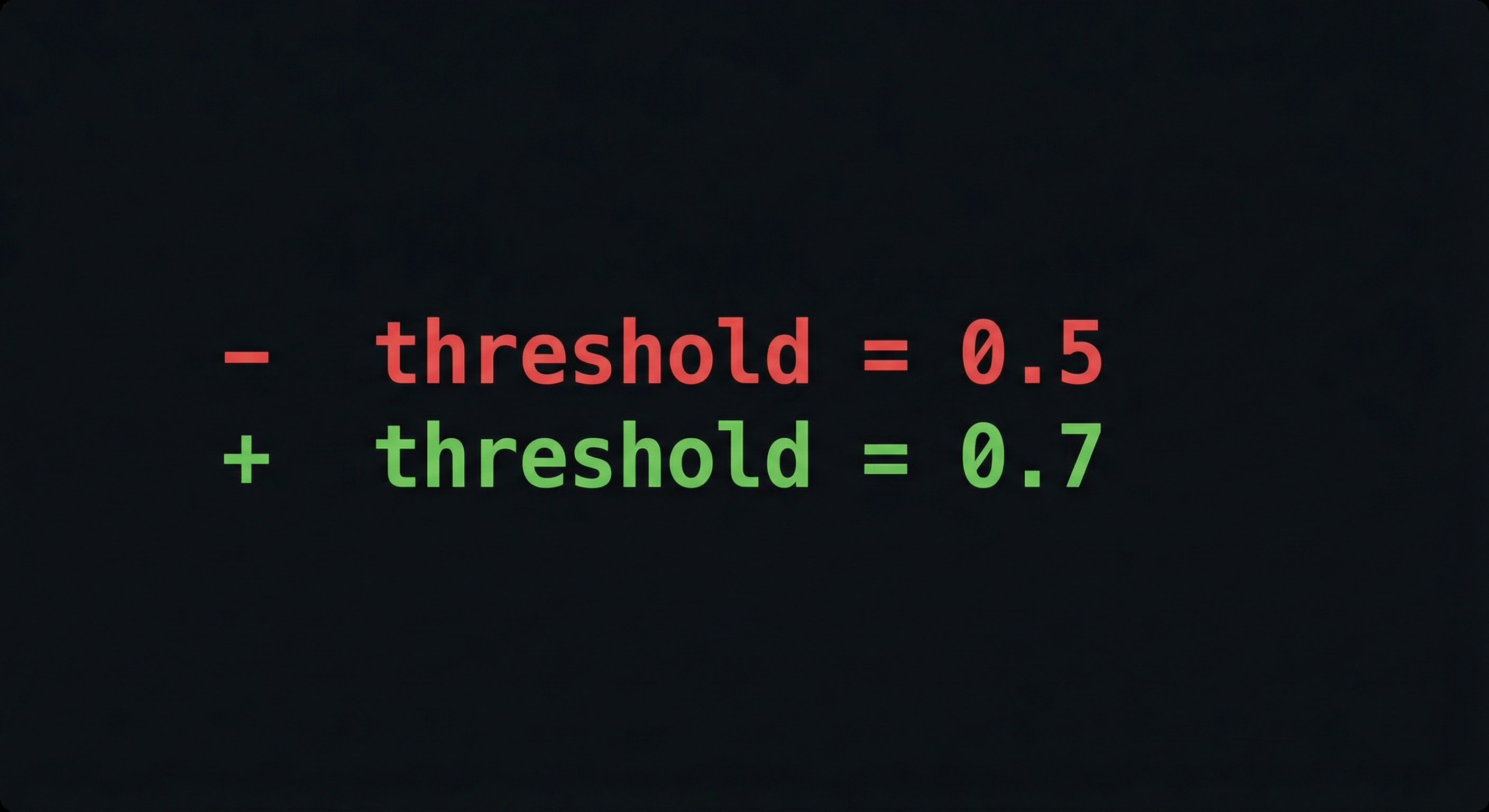
git diff = working copy vs last commit (or vs staged). Very useful before committing.
Basic workflow — Picture
  Working directory     Staging area        Repository (history)
  (your files)    →     (git add)     →     (git commit)
       edited                staged              snapshot
You edit → you add (stage) → you commit. History is only what you committed.
IDE integration — Why use it?
Same Git workflow — status, stage, commit — from your editor instead of the terminal.
See changed files and diffs at a glance
Stage, commit, and write messages in one place
Switch branches and push/pull from the UI
Fewer context switches when coding or writing
Today we practice in the terminal so you understand what the IDE is doing; then you can use either.
IDE integration — RStudio
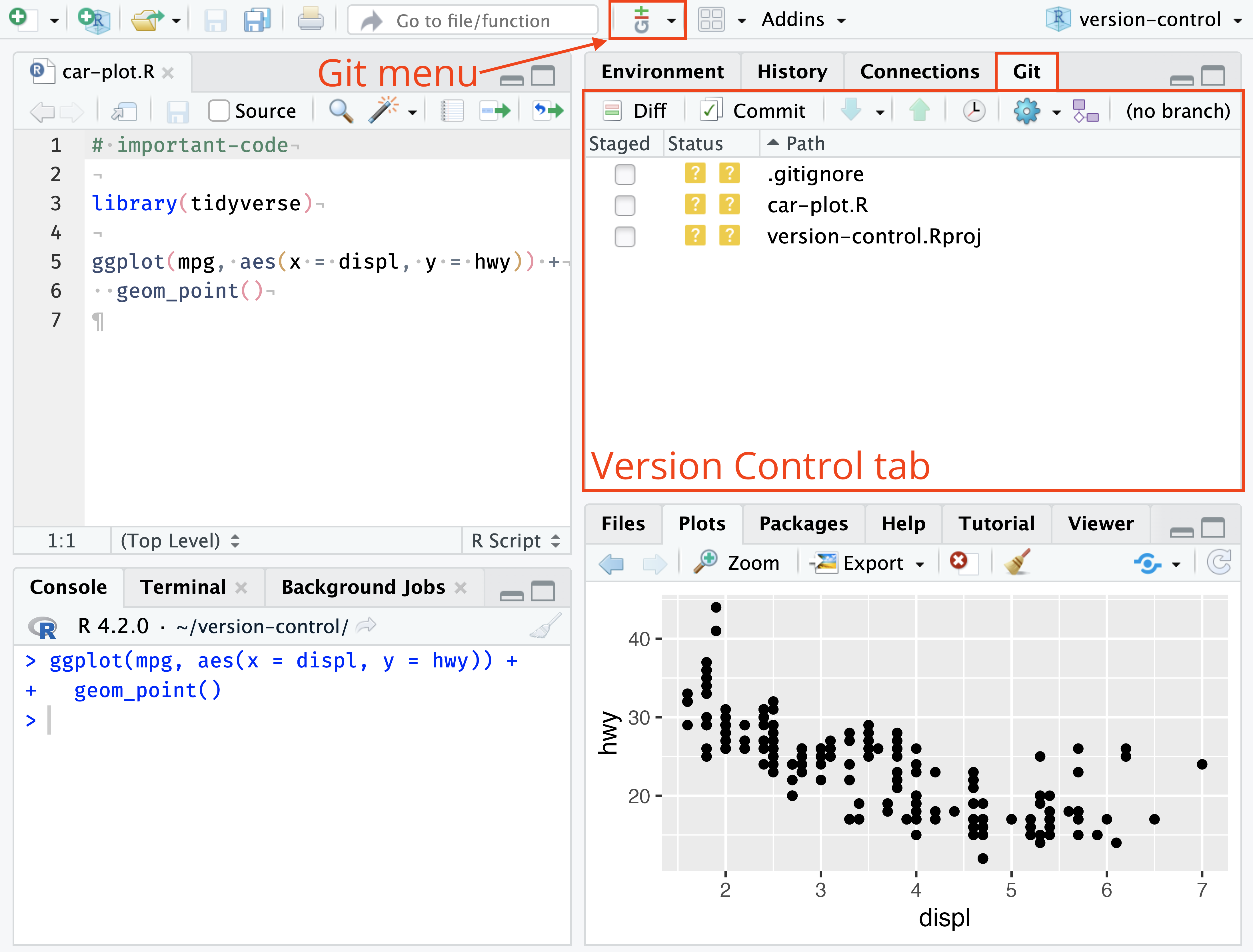
Git pane (top-right when in a Git repo):
Status — Modified, staged, untracked files
Diff — Click a file to see changes
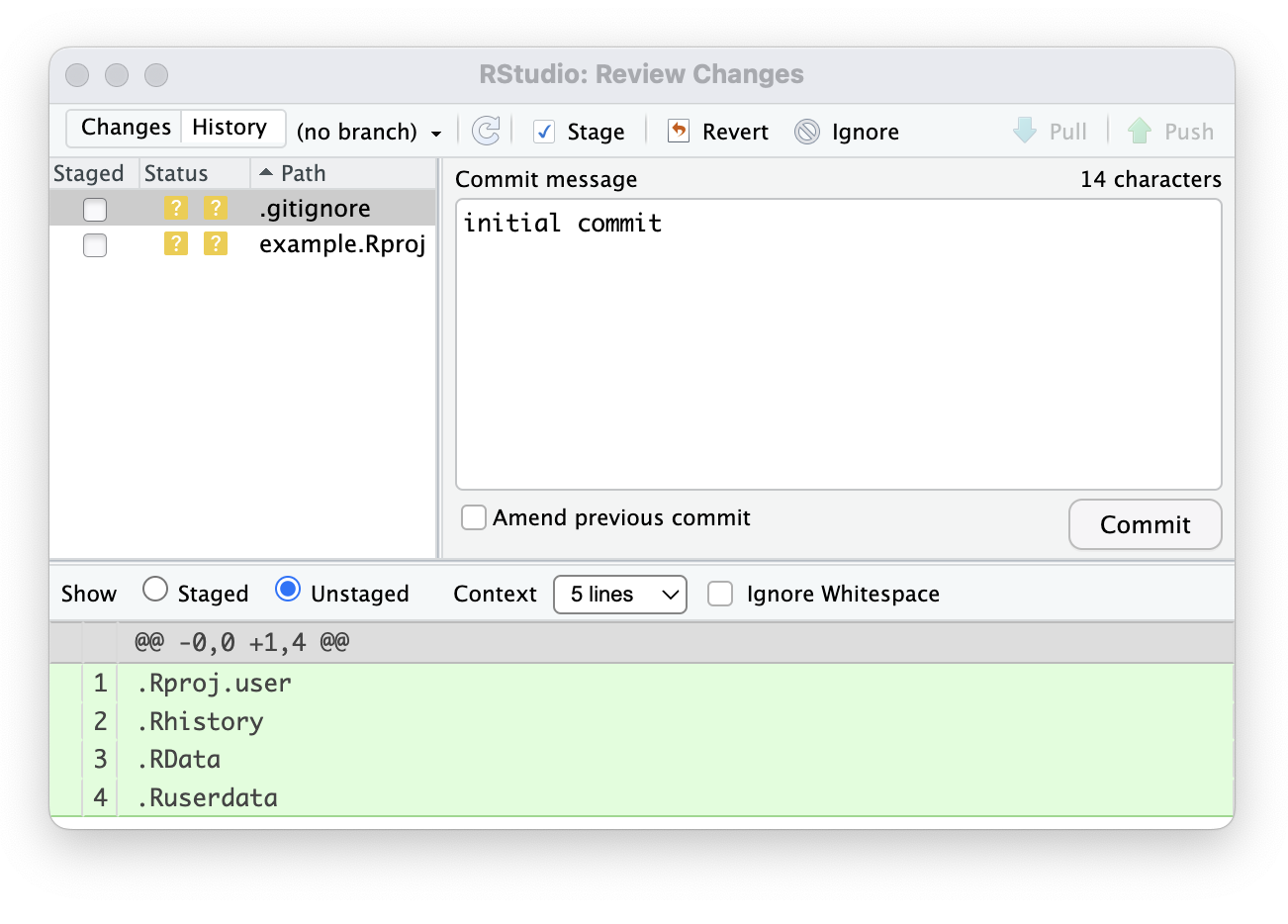
Stage — Checkbox or “Stage” button
Commit — Message box + “Commit” button
Branches — Dropdown to switch, create, merge
Push / Pull — Blue/green arrows (after remote)
First time in RStudio
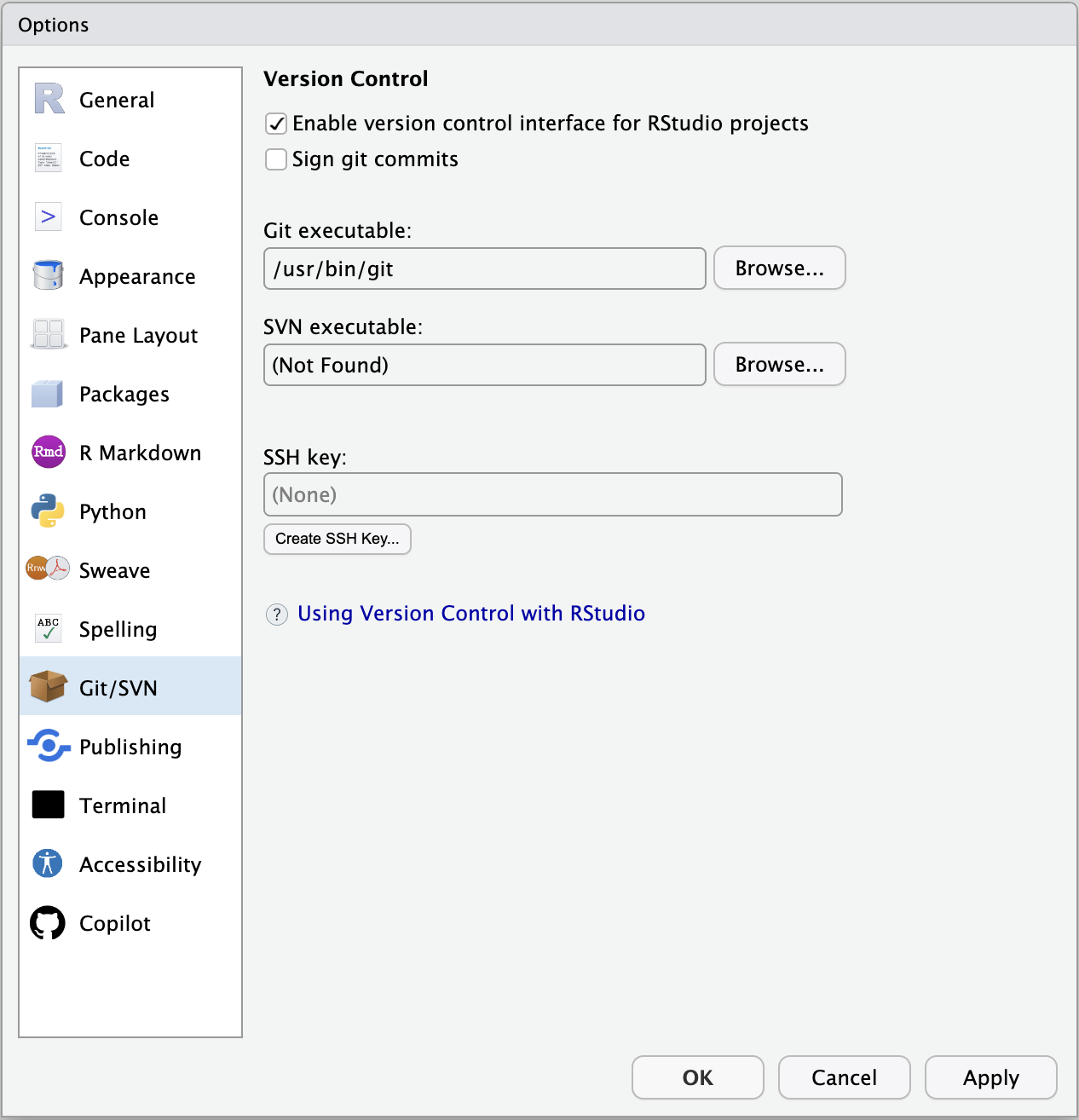
Tools → Global Options → Git: ensure “Git executable” points to your Git (e.g. /usr/bin/git). RStudio will use the same user.name / user.email as the terminal.
Tools → Global Options → Git
New project from Git: File → New Project → Version Control → Git; paste repo URL to clone.
RStudio — Commit and Git options
RStudio Git pane
Commit pane — message and Commit button
IDE integration — VS Code
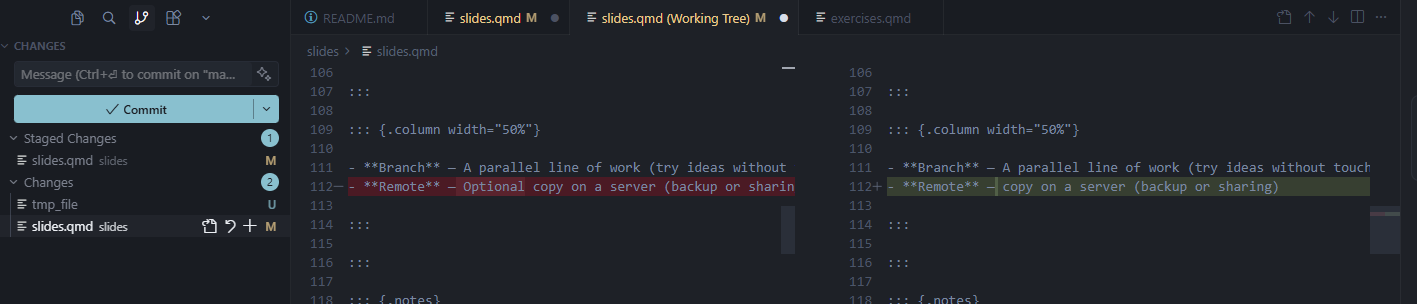
Source Control view (sidebar icon or Ctrl/Cmd+Shift+G):
Changes — List of modified/untracked files; click for diff
Stage — “+” next to file or “Stage All Changes”
Message — Box at top; Commit button (checkmark)
Branches — Bottom-left status bar: current branch; click to switch/create
Sync — Push/pull via status bar or “…” menu in Source Control
First time in VS Code
Install the built-in Git support (usually already active). For GitHub: “GitHub Pull Requests and Issues” extension. Git uses your system Git and config (user.name / user.email).